



This WooCommerce SEO guide helps you review the pages customers and search engines use to understand your store. Start with product and category content, then check navigation, URL behaviour, index controls and structured data. The aim is to make useful catalogue pages easier to find and understand while preserving the buying experience.
The worked example below uses a fictional lighting shop to explain decisions. It is not a client case study or a claim about measured results. Apply the checks to your own catalogue and test changes before making them across a live store.
1. Audit a representative sample of your store templates first
Choose a manageable sample: your main shop page, two important categories, a simple product, a variable product and a product with a stock or availability change. Record each URL, the page’s purpose and the route a customer takes to reach it. Include a filtered category page if the store relies on filters.
This sample helps you distinguish a template problem from a single product issue. If every category is missing its description, editing one category’s metadata will not fix the underlying display problem. If one product lacks useful specifications, the problem may be its content rather than the whole template.
2. Give WooCommerce categories, attributes and tags distinct SEO roles
WooCommerce uses categories for hierarchical product grouping, tags for flexible non-hierarchical associations, and attributes for characteristics used in variations and filtering. Its product taxonomy documentation explains those differences. Plan their use before importing a large catalogue.
| Catalogue element | Example in a fictional lighting shop | Practical purpose |
|---|---|---|
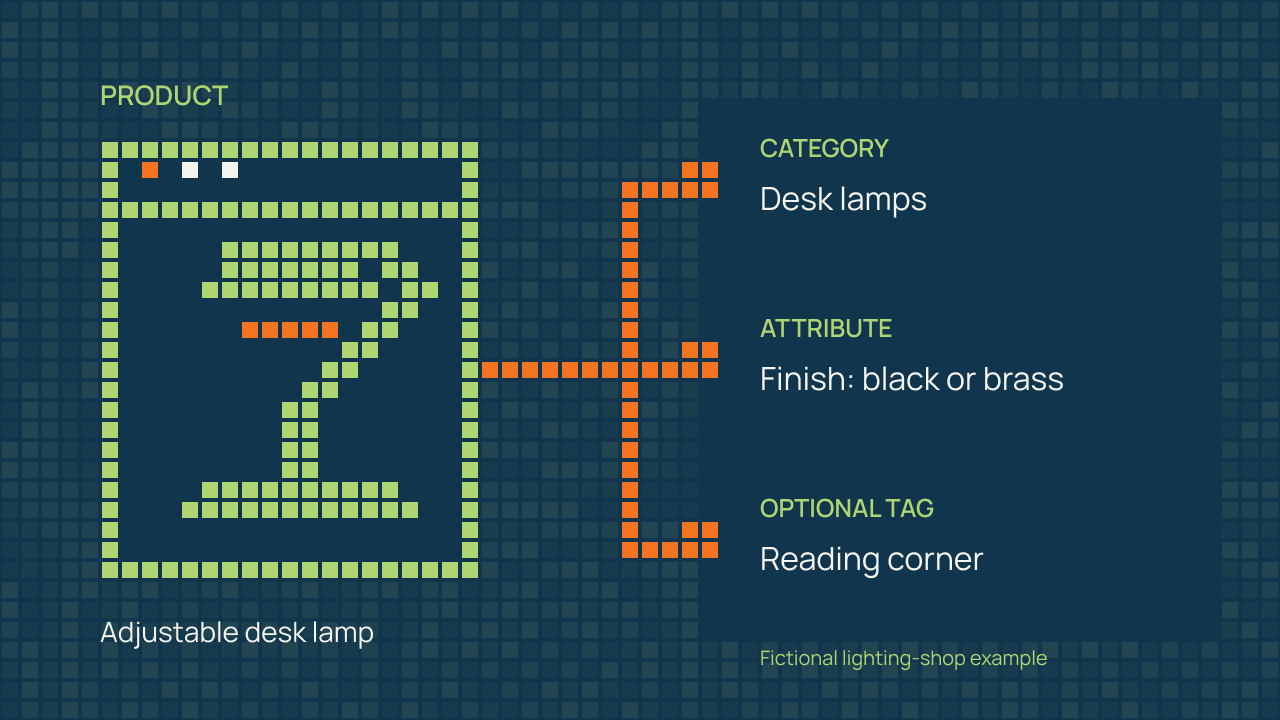
| Category | Desk lamps | A clear collection customers can browse. |
| Subcategory | Adjustable desk lamps | A more specific group when it serves a real browsing need. |
| Attribute | Finish: black or brass | A consistent characteristic for selection or filtering. |
| Tag | Reading corner | An optional association that may cross categories. |
Do not create a new tag for every phrase you hope to rank for. An archive needs a useful role and enough relevant products or information to deserve a separate route. A tag that repeats a category without improving discovery can add complexity without helping the shopper.
3. Write product pages that answer real buying and specification questions
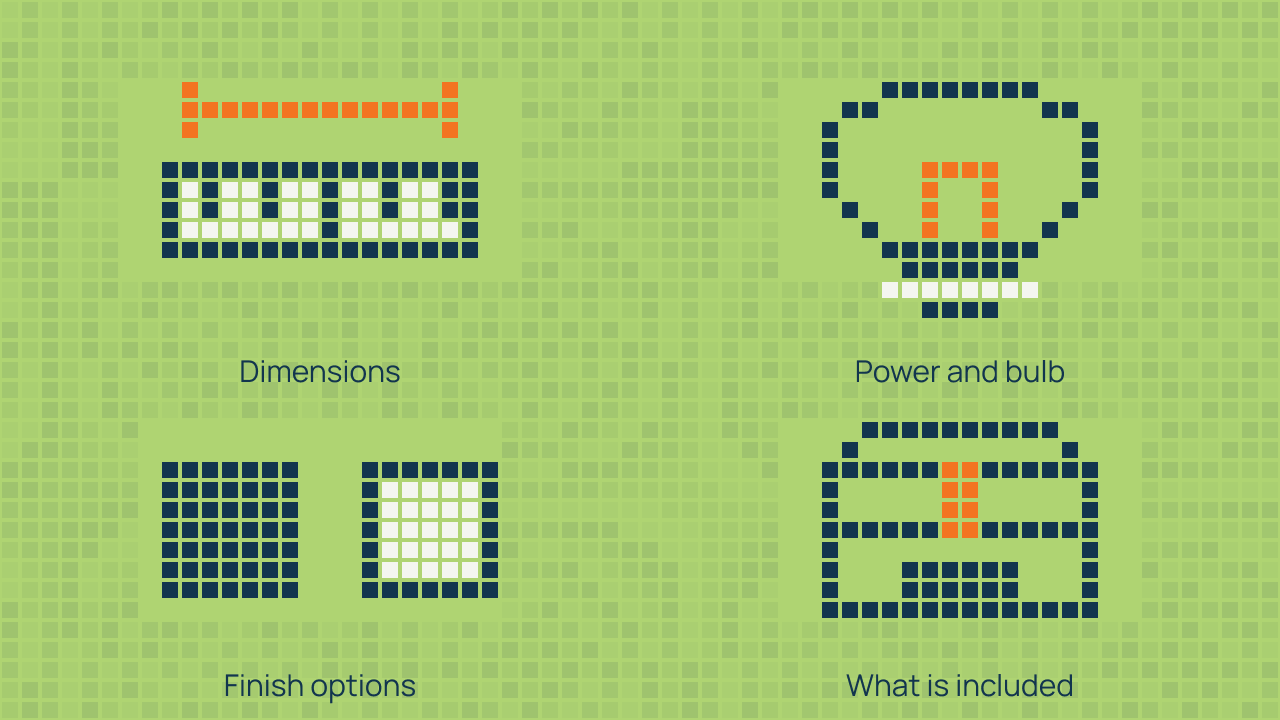
A product page should help someone decide whether the item fits their needs. Use a clear name, accurate images and the details that affect the purchase. For a desk lamp, that might include dimensions, power requirements, adjustability, the supplied bulb and the finishes actually available.
Replace generic supplier wording where you can add accurate, useful information. Keep specifications consistent with the product itself and with the options a customer can select. Do not add claims about compatibility, warranties or delivery that your business cannot support.
- Give each product a descriptive name rather than a string of repeated keywords.
- Explain the product’s use and the limitations a buyer needs to know.
- State variant differences clearly, including any price or availability change.
- Use informative image alternatives where an image communicates product details.
- Make shipping, returns and support information easy to reach.
- Keep the main explanation available as readable text, not only in an image or download.
In the sample shop, a useful description of an adjustable desk lamp explains its reach, base size and light source. Repeating desk lamp several times adds less value than answering whether it fits a small desk or whether the bulb is included.
4. Structure category pages around commercial shopping intent
A category should help someone choose within a meaningful group. Give it a descriptive heading and useful context, then make the products and relevant controls easy to find. Long introductory text is not automatically more helpful if it pushes the products out of the shopping flow.
For the fictional desk-lamp category, a short introduction could explain the difference between task lighting and decorative lighting, followed by relevant filters and product options. Buying advice can appear where it helps comparison rather than being repeated above every product grid.
Link to related categories when that helps the decision. Use normal links with descriptive labels. Google’s link guidance supports checking the actual link markup, which matters when navigation or product lists are driven by scripts.
5. Keep product, category and variant URL structures stable
Choose a readable, stable URL structure and use it consistently in internal links. Do not change working addresses just to remove a word or chase a supposedly perfect SEO URL. A change can require redirects, link updates and verification across the catalogue.
Google’s ecommerce URL guidance explains how alternative URLs, parameters and variants affect discovery. Review product URLs, pagination and variant handling as separate questions. A store can expose several addresses for similar content without needing all of them to compete as independent search pages.
When your implementation uses canonical annotations, check that they reflect the preferred version and do not contradict your internal links or sitemap. Do not point every distinct product or category to the shop homepage. Canonical decisions need to reflect the relationship between the actual pages.
6. Control faceted filter URLs before they bloat Google’s index
Filters can create many combinations: category, finish, colour, size, price and stock status. Some combinations may provide a useful dedicated landing page. Others merely rearrange a small set of products and add many similar URLs.
Separate the business decision from the implementation. First decide which collections deserve a discoverable page. Then review the crawl, index and canonical behaviour of the remaining filter combinations. Do not apply a blanket rule to all categories, tags or attributes without checking what the store needs.
Google’s faceted navigation guidance discusses managing the volume of filter URLs. If a URL is already indexed, remember that blocking crawling and requesting removal from the index are different tasks. A crawler needs access to read a noindex instruction; check the noindex documentation before combining controls.
7. Validate Product, Offer and Review schema against visible store data
Product structured data should match the item a customer can see and buy. Check the product name, price, currency, availability and applicable variant information. Review which parts come from WooCommerce, the theme and any SEO extension so that you understand the final output.
Google distinguishes product snippets from merchant listings, with different requirements and enhancements. Its product structured data documentation is the starting point for choosing the applicable setup. Valid markup can support eligibility for a search feature; it does not guarantee that the feature will appear.
Use a validation tool on representative product URLs and compare its findings with the page itself. Do not add invented ratings or reviews, and do not assume that installing another schema plugin resolves conflicting data. Product information needs a consistent source and a process for staying current.
8. Optimize mobile shopping flows and WooCommerce template speed
A shopper should be able to select an option, understand the price, add an item and continue towards checkout on a narrow screen. Test those actions with realistic product names and variation combinations. Check whether sticky controls, banners or filter panels cover essential information.
Measure category and product templates separately. A large category grid may have different bottlenecks from a variable product page. Test image loading, layout movement and important interactions, then confirm that performance changes have not broken product selection, cart behaviour or checkout.
For a focused technical review, WordPress speed optimization can be scoped around the store’s important templates and user journeys. Keep test conditions and dates with any before-and-after comparison rather than reporting a score without context.
9. Handle out-of-stock and discontinued product URLs without unnecessary removal
Treat temporary stock changes differently from permanently retired products. A temporarily unavailable item may still provide useful specifications, support information or an option to be notified, if your store supports that process. Do not remove a useful page solely because stock changed for a short period.
For a retired product, decide whether a genuine replacement exists and whether the old information still serves customers. Review links, availability data and any planned redirect together. Avoid sending every discontinued item to an unrelated category just to keep a URL returning a page.
10. Track organic impressions and conversions by template type
Record a baseline before a substantial change. In Search Console, review the queries and pages associated with important categories and products. In your analytics setup, check the steps relevant to product viewing, adding to cart and completing an order, where those events are implemented.
Keep a change log with the date, affected templates, intended improvement and verification method. Compare similar periods and account for promotions, stock changes and seasonal demand. A rise or fall after an edit is an observation to investigate, not proof that the edit caused it.
WooCommerce SEO checklist
- Identify the categories and products that matter most to customers.
- Check that category, tag and attribute roles are intentional.
- Improve product information around real buying questions.
- Review titles and descriptions for important product and category pages.
- Check internal links, pagination, variants and preferred URLs.
- Decide which filtered pages are useful before changing crawl or index controls.
- Validate product structured data against visible prices and availability.
- Test mobile product selection, cart and checkout behaviour.
- Record a baseline, a change log and a follow-up review.
Frequently asked questions
Is installing an SEO plugin enough for a WooCommerce store?
No. A plugin can help manage title templates, XML sitemaps and other technical controls, but it cannot design a useful category taxonomy, decide which attribute or tag archives deserve search visibility, write accurate product specifications or fix slow cart scripts by itself. Review the store’s content and finished implementation as well as plugin settings.
Should WooCommerce product tags and attribute filter URLs be indexed in Google?
Not automatically. Indexing every product tag and multi-select filter combination can create many thin or near-duplicate URLs. Allow a category, subcategory or attribute archive to be indexed when it targets a distinct shopping need and offers a useful, differentiated product selection. Review crawl, index and canonical controls separately rather than applying a blanket rule.
What is the best SEO practice when a WooCommerce product goes out of stock?
Do not delete a useful product page solely because stock is temporarily zero. Keep the URL live with accurate availability, genuine restock information or alternative products. For a permanently discontinued item, use a 301 redirect only when a genuinely relevant replacement exists. If the page no longer serves users and there is no replacement, a 404 or 410 can be appropriate; do not redirect unrelated products to a category just to avoid an error status.
Choose a focused next step for your store
Start with the issue that prevents customers or search engines from using important pages. ClimbSignal’s WooCommerce SEO service covers a defined technical and on-page scope. If the store itself needs new templates or functionality, review WooCommerce development as a separate piece of work.